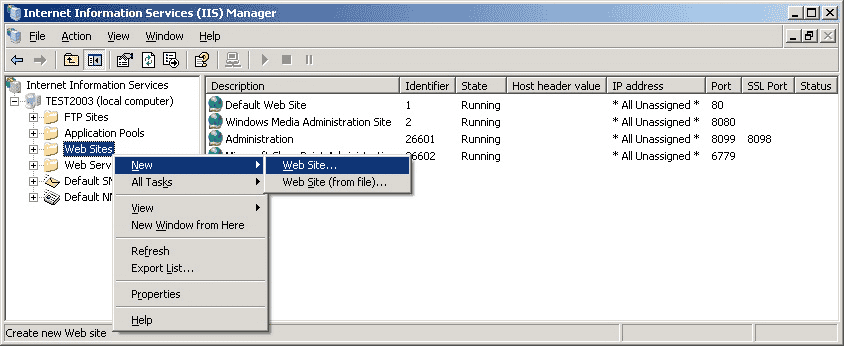
Overview
If you’re used to setting up Nginx, IIS can be quite unintuitive. Starting form GUI management, ending with modules being downloaded manually opposed to package repositories in Linux.
Prequisites
For Reverse proxy you need to install following components from server manager or Microsoft website:
- Application Request Routing 3.0 (ARR) Module
- URL Rewrite Module 2
- Internet Information Services (IIS) installed from server manager
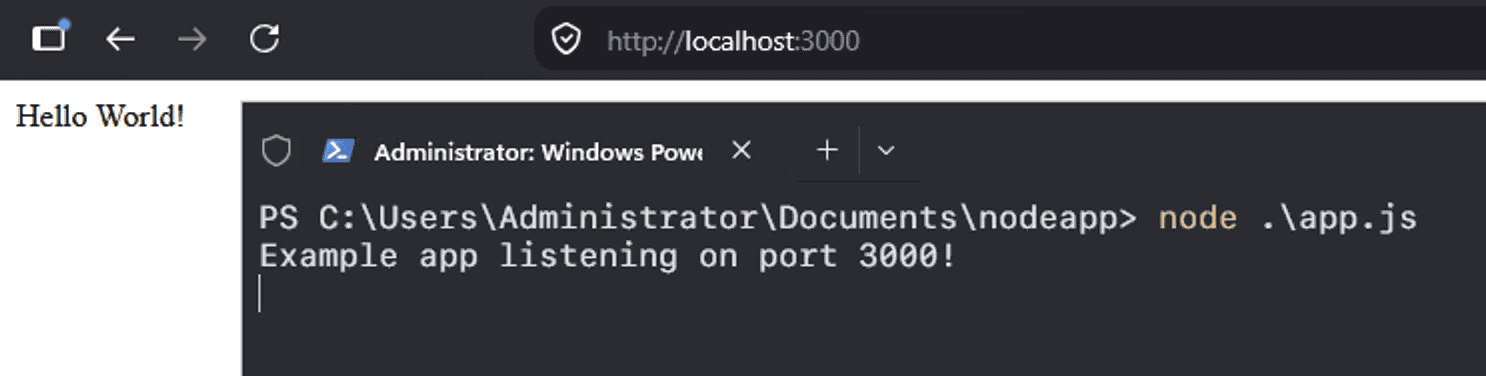
For example purpose, I have windows non-standart application - nodejs, started separately on port 3000
Checking installed modules
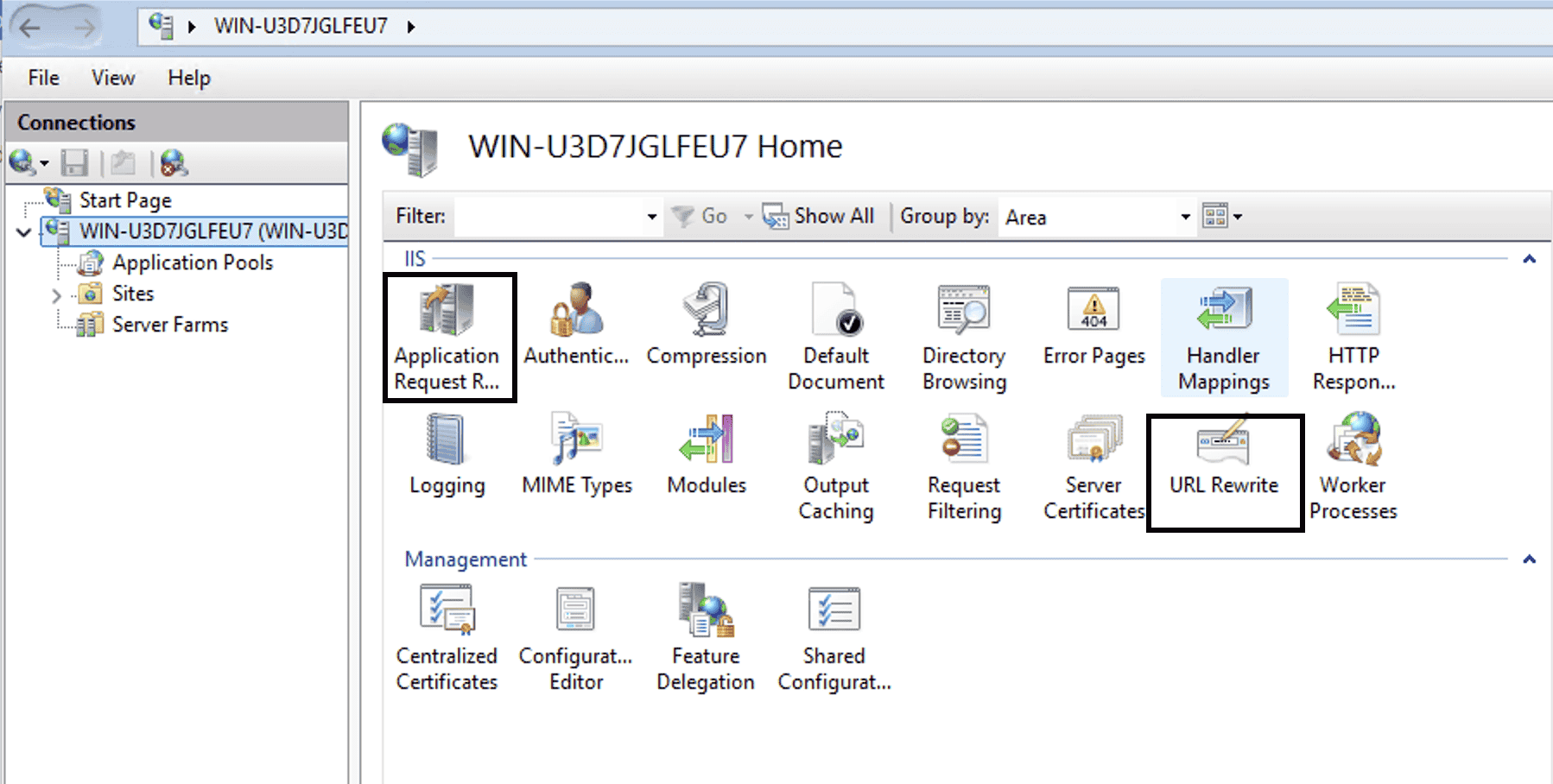
If you have ARR and URL Rewrite module installed, you will see them both in IIS menu
Configuring reverse proxy
- Create IIS site by right clicking in left menu entry
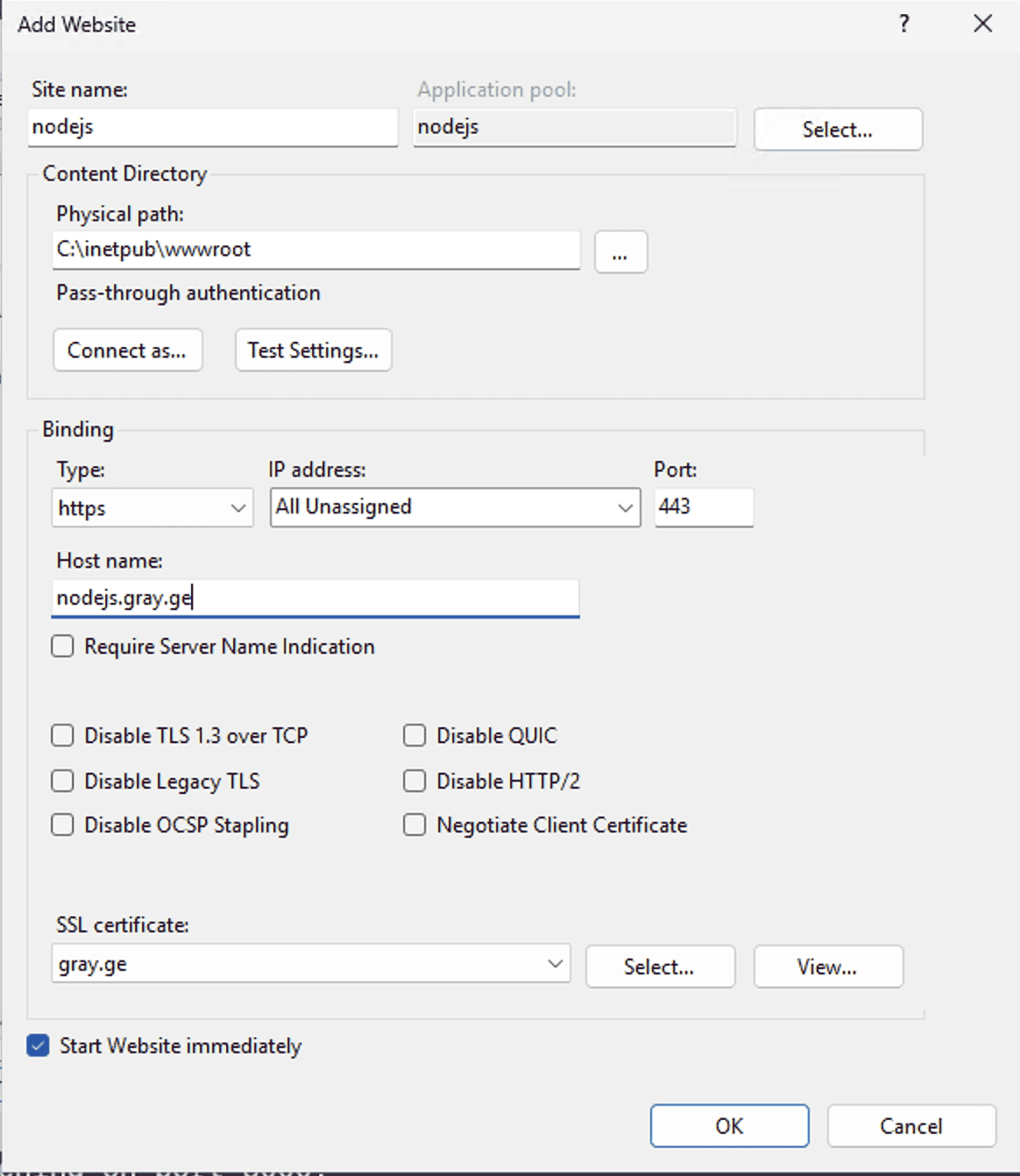
- In the site, create
URL rewriteRule
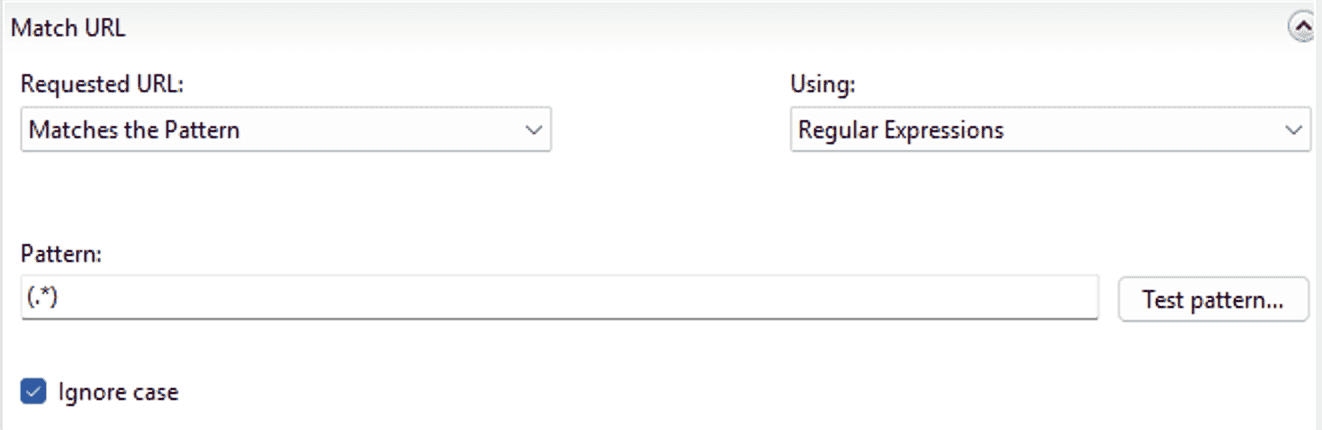
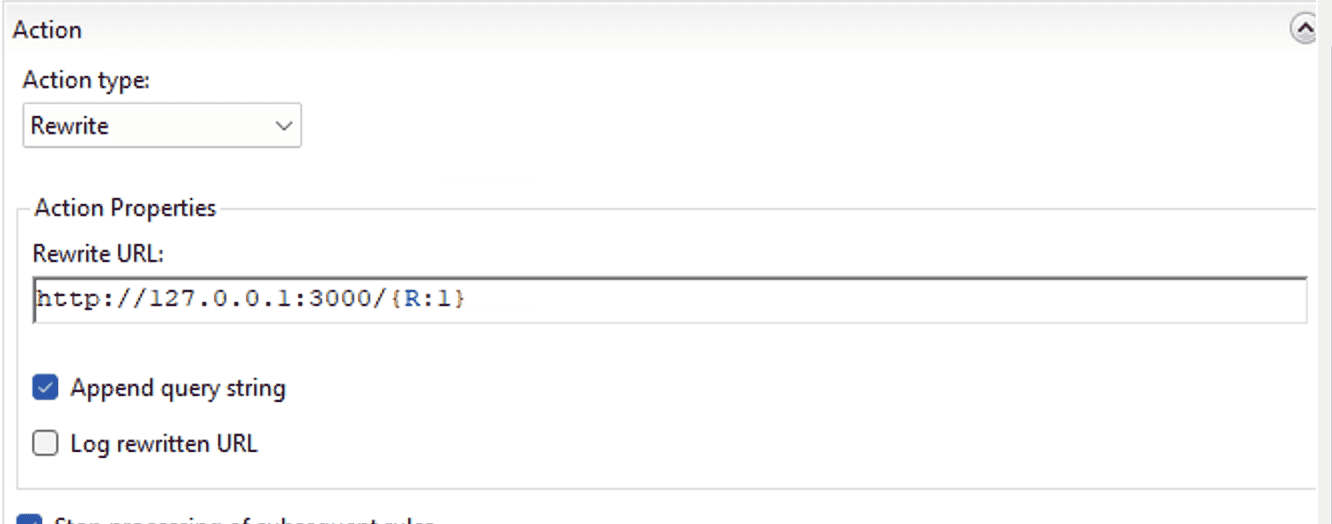
- Check the domain and you have an app with ssl and 443 port
| |
For single-endpoint reverse proxy, ARR and URL Rewrite module are enough, if we have more than one server, then we should use Server Farms module.